
Student Assist @ UNE
For detailed instructions and screenshots on how to access Student Assist and request a Study Access Plan (SAP) see the steps below. You'll find the following steps on this page:
- Step 1: Log in to Student Assist
- Step 2: Explore Your Dashboard
- Step 3: Submit a Request
- Step 4: Upload Supporting Documentation
- Step 5: Review and Approve Your Study Access Plan
- Step 6: Access Resources
Please contact our team if you have any further questions: 02 6773 2897 accessinclusion@une.edu.au or AskUNE
Log in to Student Assist
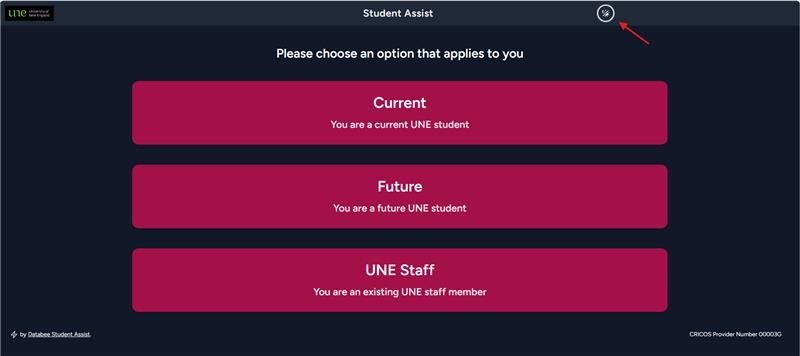
- Go to Student Assist.
- Select the option that applies to you - Current Student or Future Student.
- Log in using your UNE username and password (e.g. smith2).
You will arrive at your personal Student Dashboard.

Note: You can select dark mode if you prefer this setting.
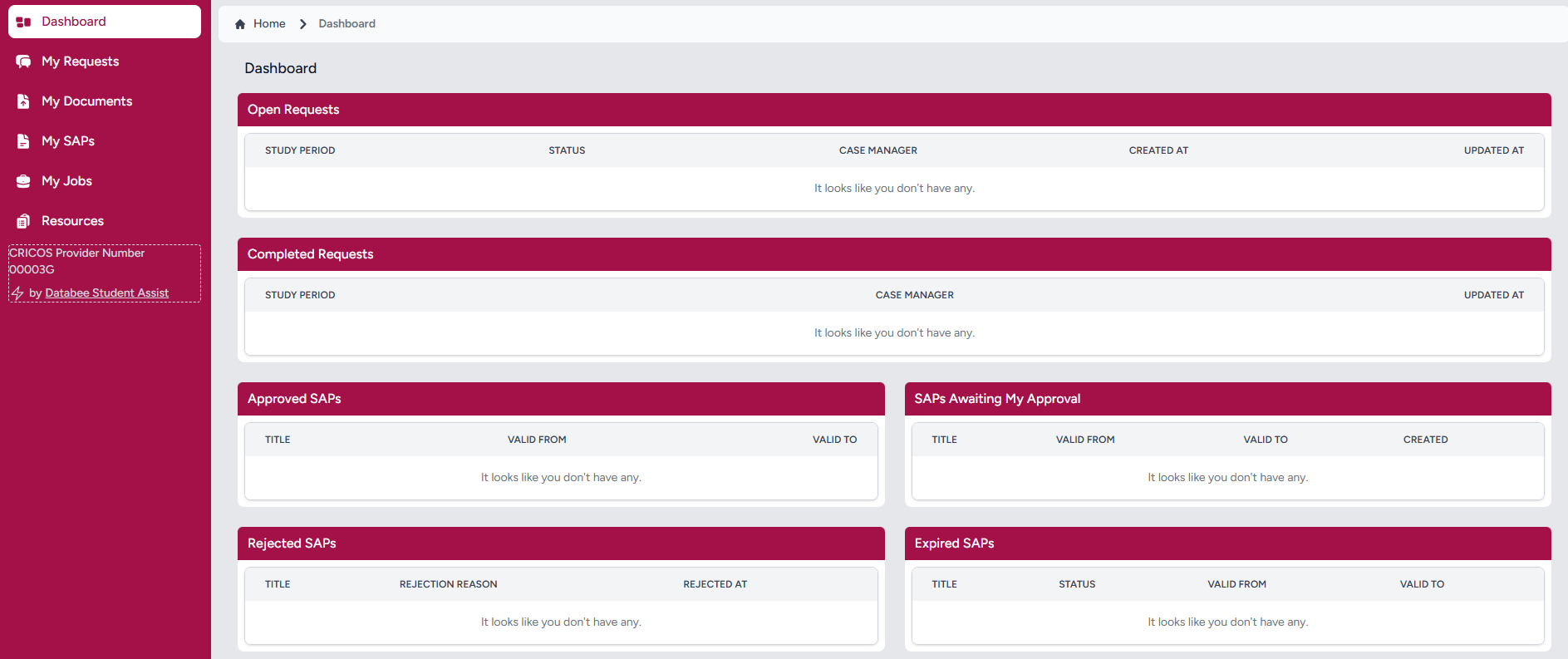
Step 2: Explore Your Dashboard
On the left-hand side of your dashboard, you’ll see several tabs:
- My Requests – to submit new requests.
- My Documents – to view any uploaded files.
- My SAPs – to view, review, or approve your Study Access Plan.
- My Jobs – to track ongoing actions or updates.
- Resources – to access important guides, templates, and helpful links.
Your dashboard provides a snapshot of all your current requests and SAPs, including those awaiting approval, approved, or expired.
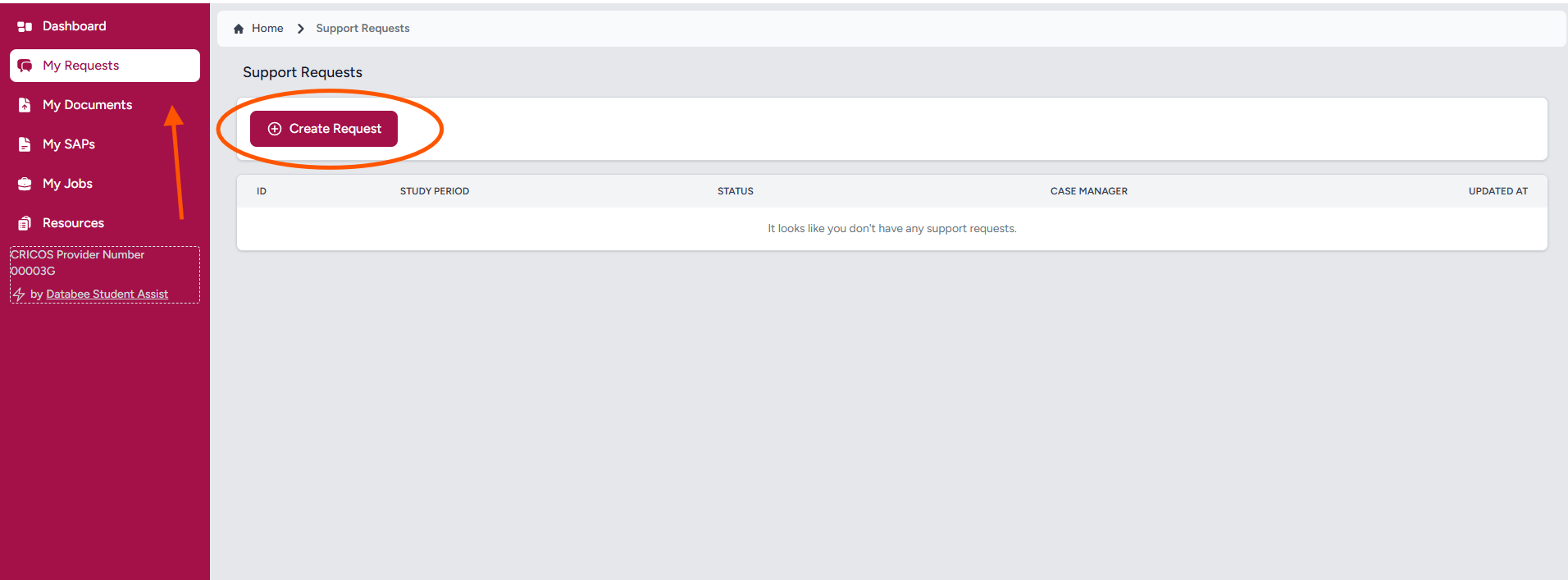
Step 3: Submit a Request
- Select the My Requests tab.
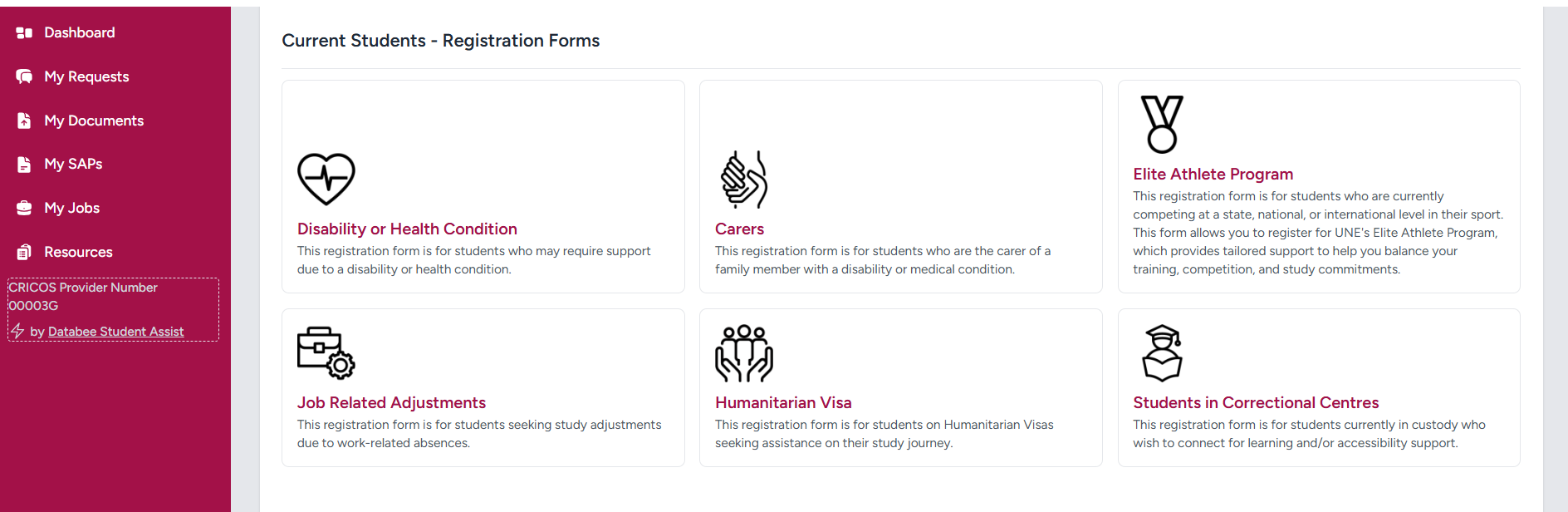
- Choose the type of request that matches your needs - for example:
- Registering with SAWO to receive a Study Access Plan.
- Submitting a general enquiry.
- Complete the online form and review the privacy consent information.
- Select Submit to send your request to SAWO.
You will receive an email confirmation to your myUNE email once your request has been submitted.
Select the registration form that meets your needs.
Step 4: Upload Supporting Documentation
Once you have submitted your request, you’ll need to upload your supporting documentation, such as a Health Professional Report.
This information enables the SAWO team develop your Study Access Plan (SAP), and we're unable to finalise your SAP without it.

Step 5: Review and Approve Your Study Access Plan
Once SAWO has created your SAP, you’ll receive an email notification to your myUNE account prompting you to log into Student Assist.
- Click the link in the email to open Student Assist.
- Go to the My SAPs tab to review your plan.
- Approve your SAP in the system when you’re ready.
Once approved, your SAP will be automatically shared with your Unit Coordinator or academic staff.
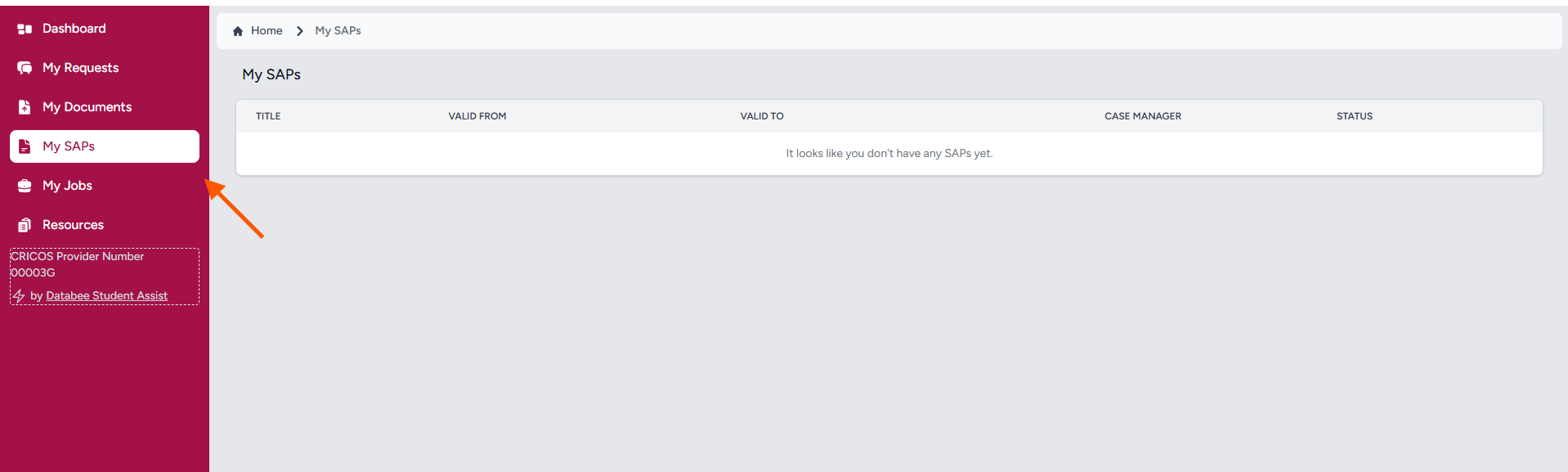
Step 6: Access Resources
Select the Resources tab to find:
- Helpful documents and templates.
- Links to the SAWO webpage and other support information.
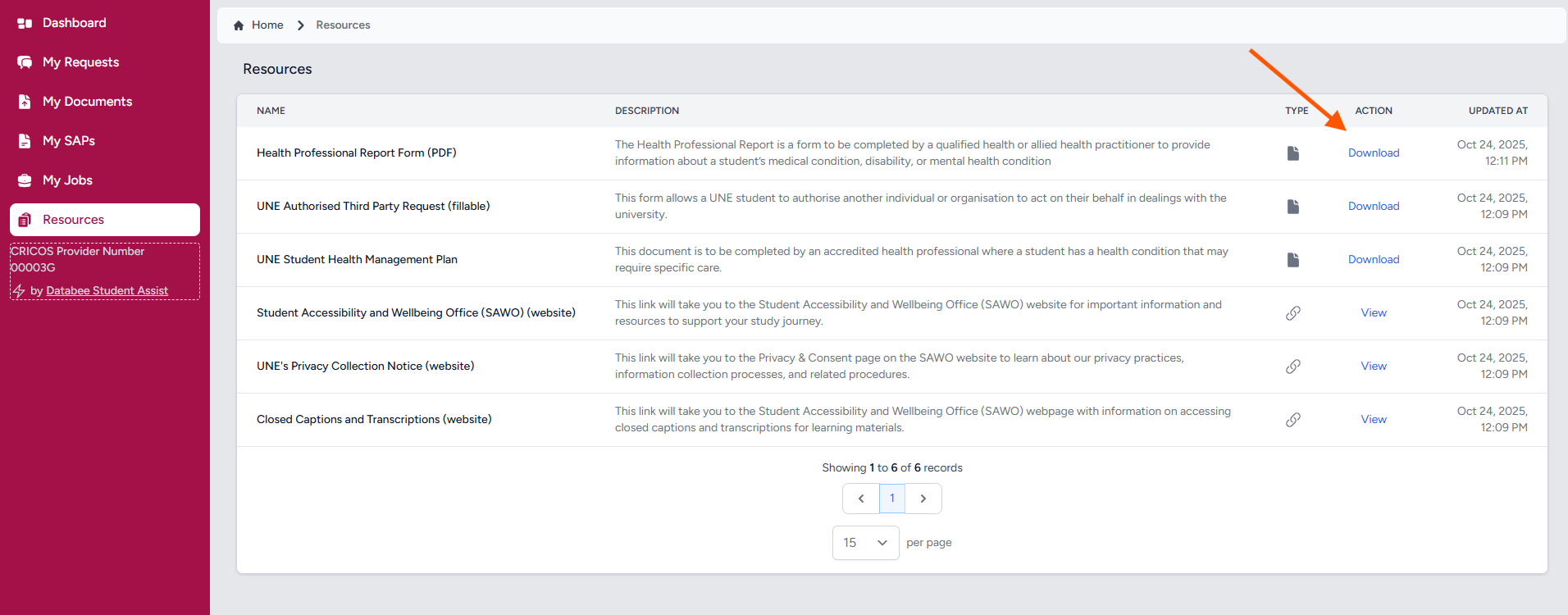
Your reference to all important Student Accessibility and Wellness Office content
- Rights: Your rights and pathways for support.
- Privacy and Consent: Our privacy practices, collection processes, and procedures.
- Physial Campus: A list of all accessible facilities and features around campus.
- Accessible Materials: Technology and resources to support your learning.
- Student Assist @ UNE: Information about accessing and using the Student Assist platform.
- FAQ's: Answers to your most common questions.
For links to all Student Support services, click here.
