Accessible Materials
UNE is committed to ensuring all students have equal access to learning materials and resources. We offer a range of accessibility supports, including Closed Captions and Transcriptions, AUSLAN Interpreting, and Alternative Format Materials, to help make study content accessible and inclusive for everyone.
Please click the links below to go directly to the section you’d like more information about:
- Closed Captions and Transcriptions
- Professional Closed Captions and Transcriptions
- AUSLAN Interpreting
- Alternative Format Materials for Students
Closed Captions and Transcriptions
All students at UNE have access to instant automatic closed captions and transcriptions.
How does the closed caption and transcription service work?
At UNE, all video and audio recordings are uploaded to the Echo360 online platform.
Please follow the below steps to access instant automatic closed captions and transcriptions:
- You can turn on closed captions by clicking the 'CC' button below the video. Captions will be generated on the video.
- There are detailed instructions on how to access and get the most out of transcriptions in the next sections.
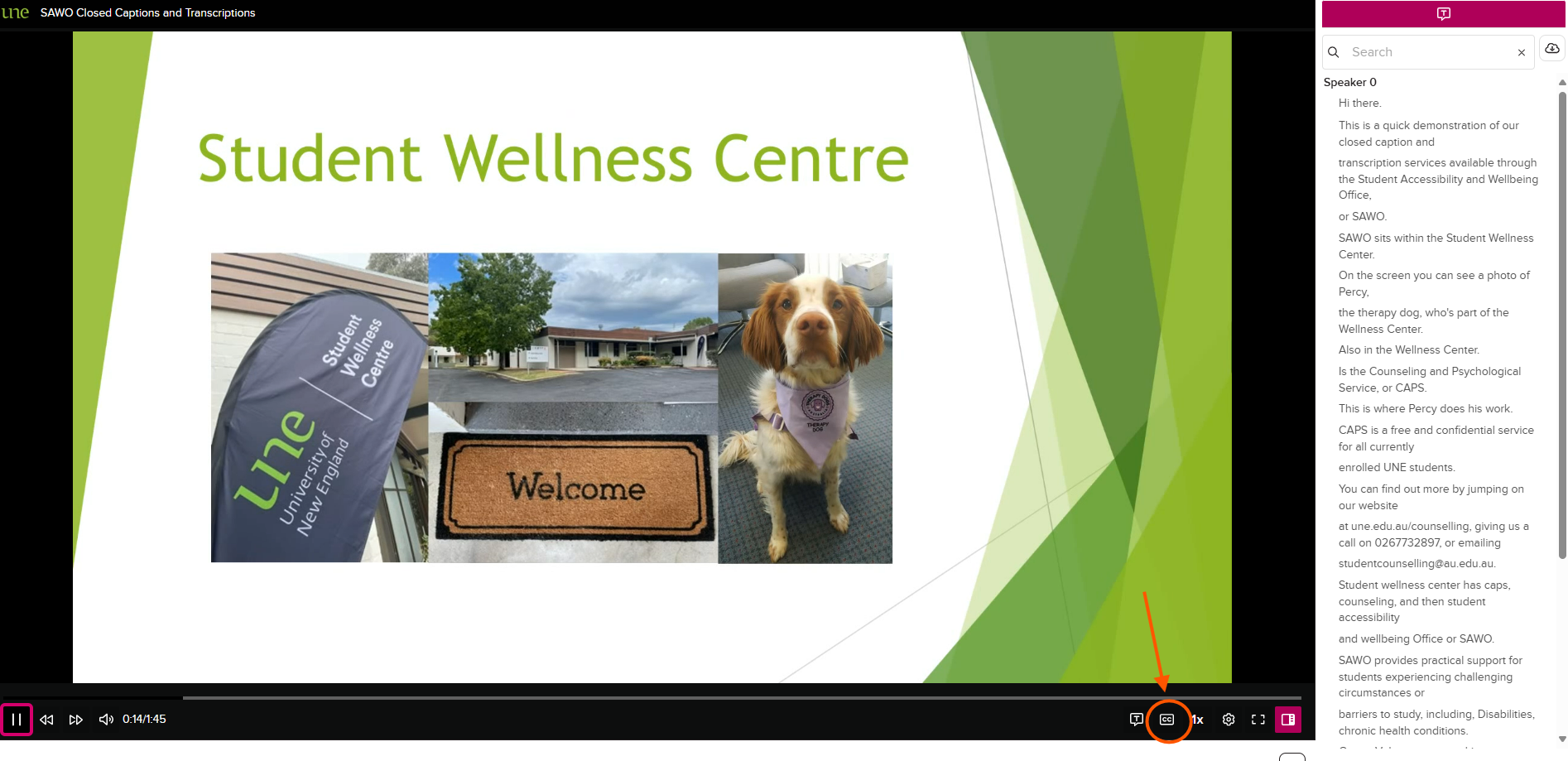
Should you require a higher quality transcript and/or closed captions, you will need to contact the Accessibility & Wellbeing team. Please call us on 02 6773 2897 or email accessinclusion@une.edu.au to discuss your requirements. Read more about our professional closed captions and transcriptions below.
Access the transcript
- Access the lecture recording through your My Learn unit site.
- On the bottom right corner of the video, click on the transcript button, symbolised by the letter 'T' in a speech bubble.
- The transcript will be displayed in the right-hand panel with the current position in the video highlighted.

Search the transcript
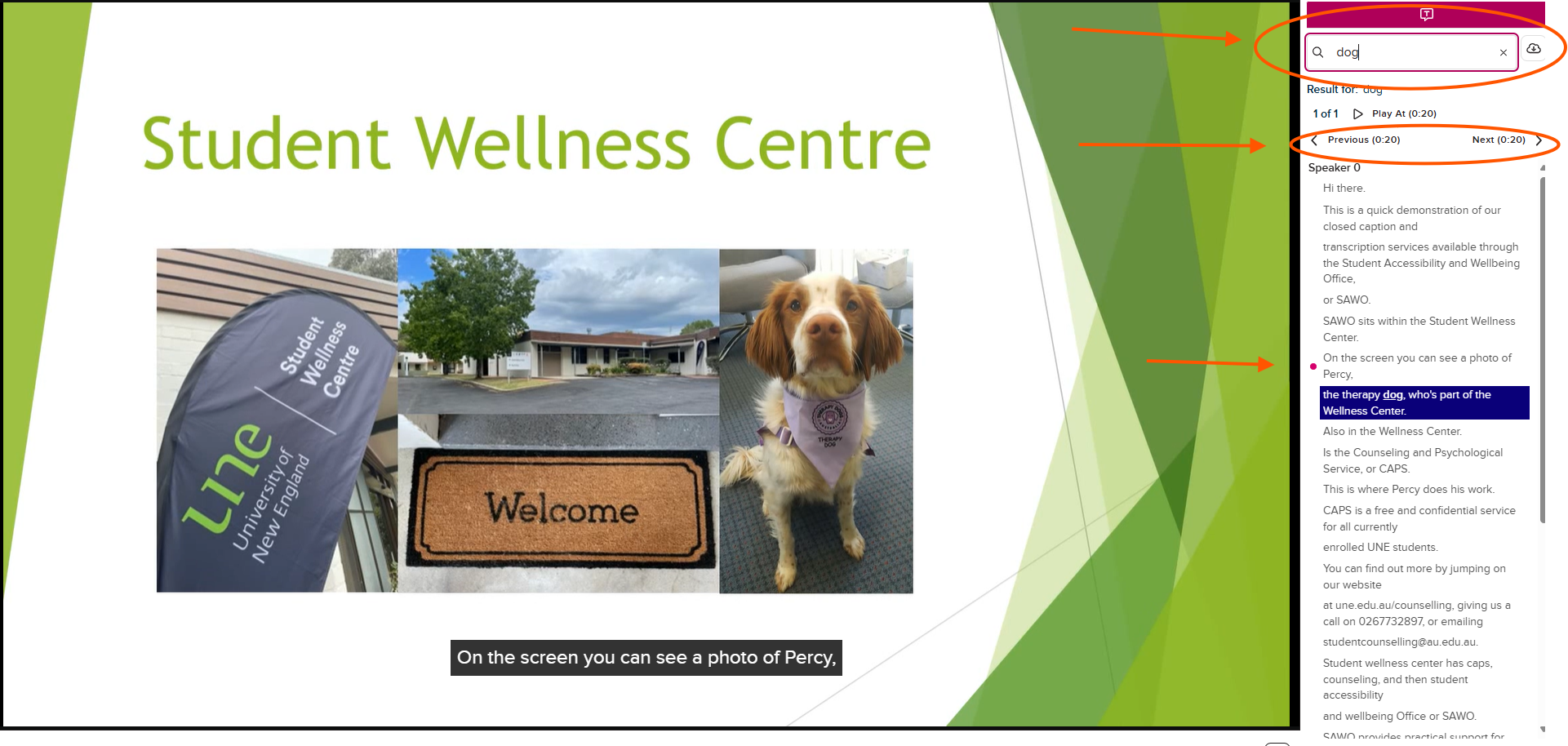
- Type your search term into the search box above the transcript.
- Use the arrows to navigate through the results.
- Click on the search term in the transcript to go to that position in the video.
Download the transcript
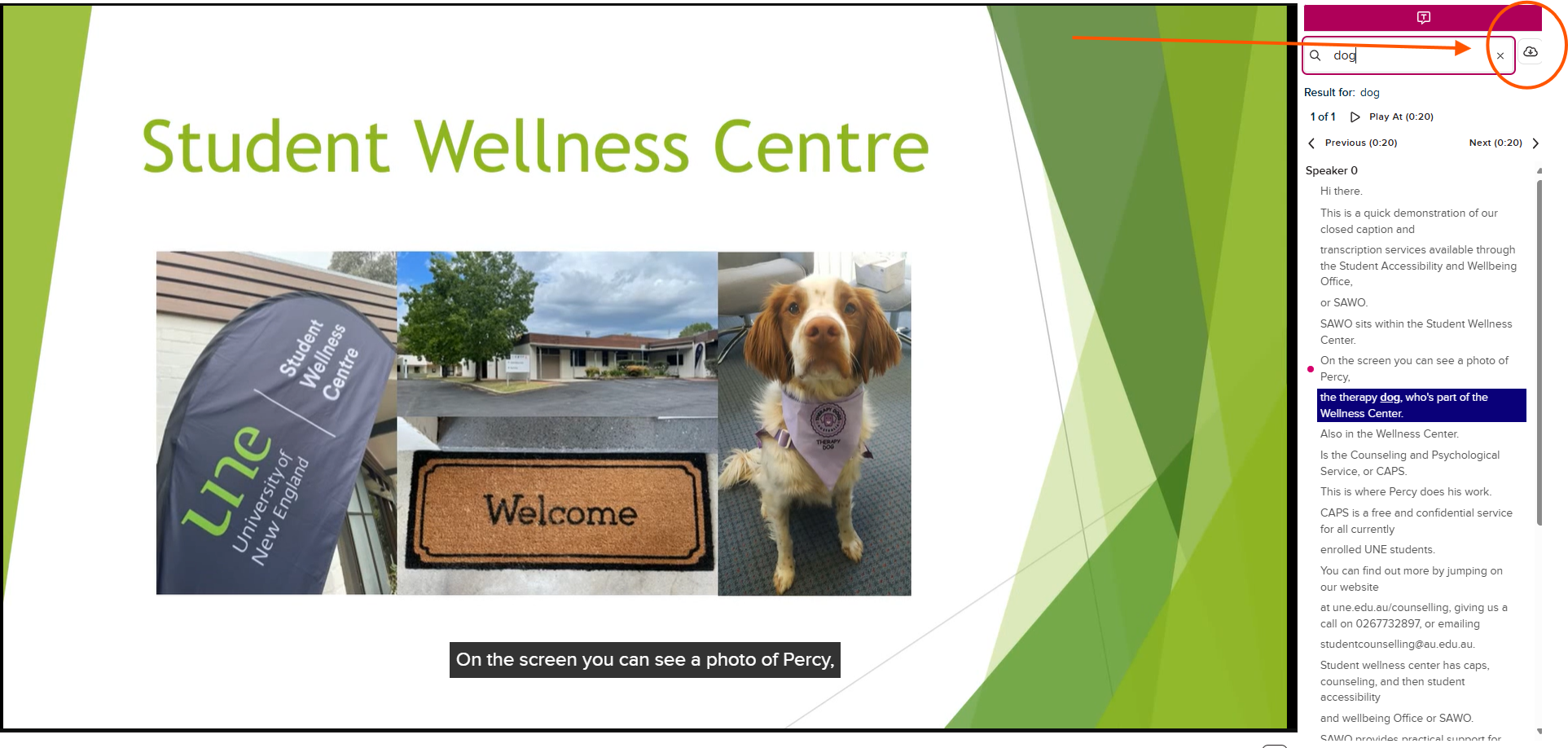
- Click on the download button located next to the search box.
- You can choose to download a .txt file, or a .vtt which will include the time stamps and can be opened in Word.
Copy the transcript text to Word
- Select all the text (PC: Control + A; Mac: Command + A) and then copy the text (PC: Control + C; Mac: Command + C).
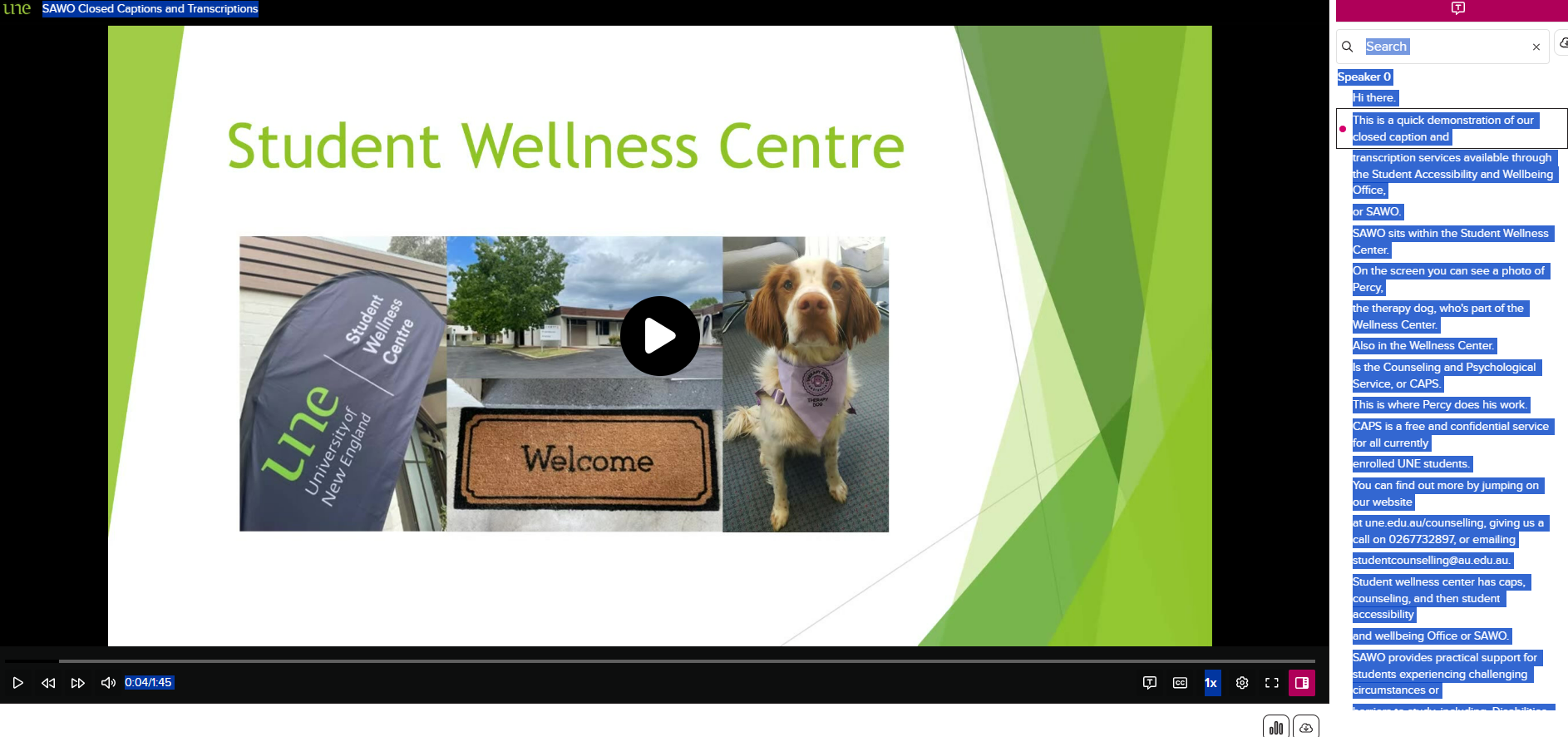
- Paste into a Word document.
- To remove the line breaks, select Replace (PC: Control + H; Mac: Command + Shift + H).
- Enter ^p in the Find what: textbox.
- Enter a space in the Find what: textbox.
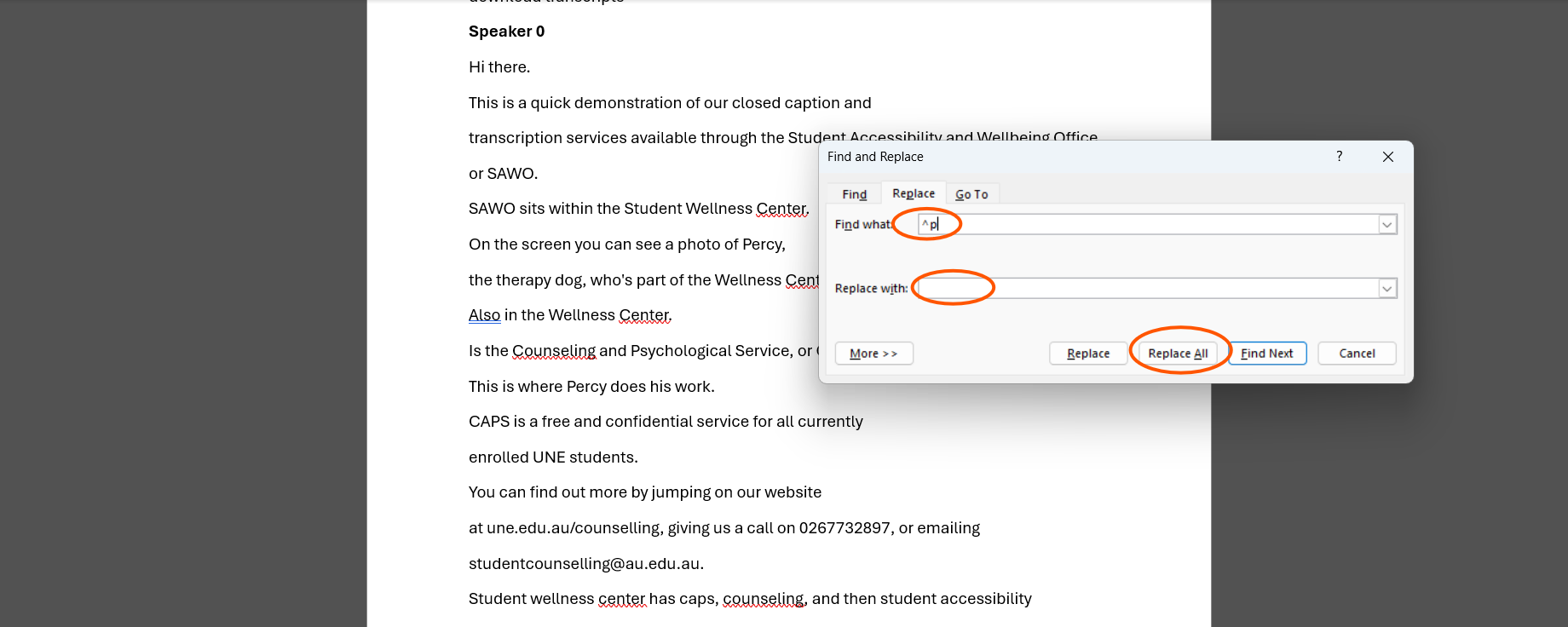
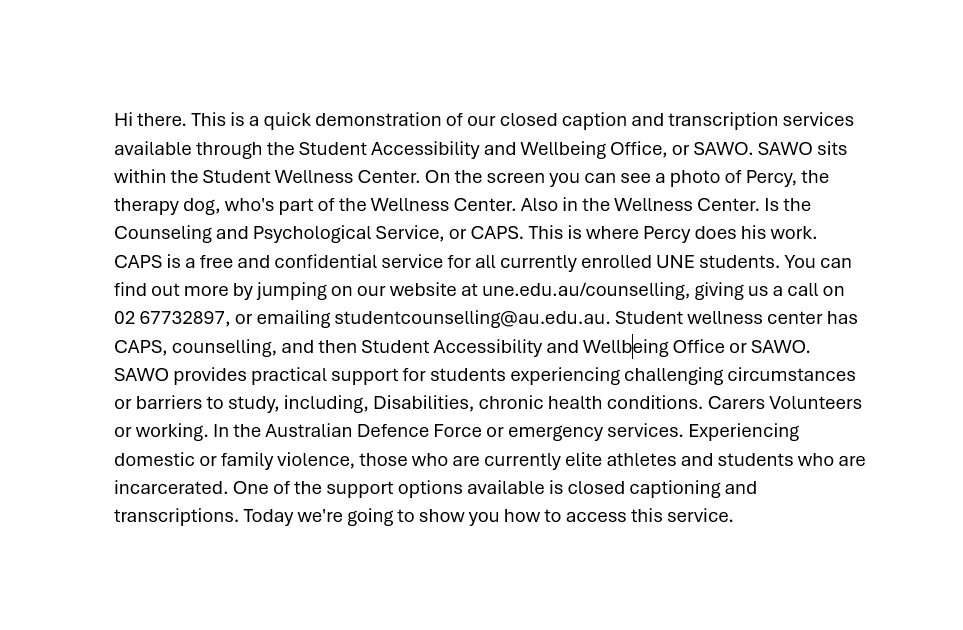
- Click on the Replace All button.
- Click on the OK button.
Professional Closed Captions and Transcriptions 
The Student Accessibility and Wellbeing Office (SAWO) can arrange professional closed captions and transcription where higher accuracy is required. This may be the case for language units, units with scientific language, or where a student finds errors in the automatic captions and transcriptions that disrupt their learning experience.
To request this service, you will need to:
- Register with SAWO
- Provide appropriate supporting documentation.
- When completing your request in Student Assist, check the "Captioned and/or transcribed content" checkbox in the "Services You Are Seeking Assistance With" field.
- If you already have a Study Access Plan (SAP), please log into Student Assist and complete a new request.
- When you approve your SAP with closed captions and transcription adjustments in place, the process is automated.
Our team will arrange content in your unit to be professionally captioned and transcribed and these will be added to the videos in MyLearn. You will access them the same way you access automatic captions and transcriptions. Please note this process usually takes 2-4 business days to complete. If you experience any difficulties or would like to provide any feedback on your experience, please call us on 02 6773 2897 or email accessinclusion@une.edu.au

Auslan Interpreting
The Student Accessibility and Wellbeing Office (SAWO) can arrange an Auslan (Australian Sign Language) interpreter for students who are deaf or hearing impaired.
Students are responsible for advising SAWO of the follow:
- Whether interpretation is face to face or online. Please note face to face interpreting is based on availability of local interpreters and not guaranteed. SAWO requires a minimum of four weeks’ notice to arrange this service.
- For online interpretation, whether content is live or pre-recorded. Lectures will be sent as recordings once available on MyLearn. They are usually available within 7 days, and your Study Access Plan will reflect additional time for assessments to address this. Live recording interpretation may be possible for interactive online sessions, depending on availability of interpreters.
- Dates of any key content outside of weekly lectures. E.g. a PASS session.
- Auslan interpreter preferences. This includes gender preference: male, female, non-binary or no preference. And any other information to be considered. Please note you can select preferred interpreters or block an interpreter if you have any preferences.
- Providing consent for SAWO to share your contact details (name, phone number and email address) to the Auslan provider.
Alternative Format Materials for Students
Some students may require course materials in an alternative format. If this applies to you, SAWO can support you through a Study Access Plan (SAP).
Once you are registered with SAWO and your SAP includes approval for alternative formats, please follow the below steps:
- Go to the Student Assist website
- Log into the system using the Current Student tab and enter your UNE username (e.g. jsnow4) and password
- Navigate to the My Request tab
- Select Create Request
- Navigate to the heading 'Other'
- Select the form called Alternative Formatting Request
Your reference to all important Student Accessibility and Wellness Office content
- Rights: Your rights and pathways for support.
- Privacy and Consent: Our privacy practices, collection processes, and procedures.
- Physial Campus: A list of all accessible facilities and features around campus.
- Accessible Materials: Technology and resources to support your learning.
- Student Assist @ UNE: Information about accessing and using the Student Assist platform.
- FAQ's: Answers to your most common questions.
For links to all Student Support services, click here.
